Case studies/Missouri DESE

Missouri DESE School Finance Portal

Rebuilding an old state payment system into something people can actually find their way around, in six months.

Handed offAI-assistedFigmaInformation architecture
Client
State of Missouri · DESE
My role
UX designer and researcher
Timeline
January – June 2026
Tools
Figma, Figma Make, Claude, Claude Design, Claude Code
The problem

The old portal reached every task through lists of links. Staff opened page after page to answer one question.

What I did

Research with state staff, a role-based structure for DESE, districts and the public, a design system, prototypes and the developer handoff.

Result

Handed off in June 2026: the Figma file in Dev Mode, a design document and React components that match the file.

The project

Six months to fix a system people had used for years

I joined in January. The project was a proposal for the State of Missouri, planned for six months, and everyone wanted it finished by June.

The Department of Elementary and Secondary Education (DESE) uses its School Finance portal to calculate and track payments to school districts across the state. State staff run the calculations, districts check what they've been paid, and the public can look up the numbers.

The portal still worked, but it was old and hard to use. DESE wanted three things: a better-organized application, a faster and clearer interface, and full accessibility.

What I did

Research, information architecture, the design system, wireframes, prototypes and the developer handoff.

Who I worked with

State officials, technical staff who have looked after the system for about 20 years, the business analyst, the data team and the developers. I ran the workshops and design reviews, and guided the developers through the handoff.

The old portal

What I found when I started using it

Before designing anything, I spent my first weeks using the old portal the way staff do every month. The look was dated, but the bigger problems were in how it was put together. On the right is what each problem became in the new design.

In the old portalIn the new portal
Old, dated interfaceHard to read, inconsistent pages.One design system: navy header, white cards, one table style, one footer on every page.
Navigation through links onlyEvery task meant clicking through lists of links.Fixed sidebar grouped by job, filtered by role.
No data at a glanceTo know anything, you opened page after page.A dashboard with key numbers, calculation status and upcoming tasks.
Repetitive fieldsDistrict and period typed again on many pages.Period chosen once; district pre-filled and locked for district users.
Heavy data entry, connected fieldsChanging one value affected others, with no visible link between them.Calculated values shown read-only next to the inputs they come from.
Reports not organizedMany reports, no clear structure.Reports by district and year; LEA calculations as a clear list of links.
Calculation pages missing basicsNo way to auto-generate or read calculations in one place.Run calculations as a quick action, with status and last-run time.
Appropriation and maintenance in one tableTwo different jobs mixed together.Separate pages under Yearly Tasks; maintenance types in one sorted dropdown.
Heuristic review

Checking the old portal against Nielsen's 10 heuristics

To turn my notes into something the team could act on, I went through the old portal against Jakob Nielsen's ten usability heuristics. It gave every problem a name and made it easier to explain to stakeholders why something needed to change, not just that it looked old.

1Visibility of system statusProblem found

Old portalYou couldn't tell whether a calculation had run without opening it.

New portalThe dashboard shows each calculation's status and last run time; Appropriation shows a check mark once saved.

2Match with the real world

Old portalSome screens used system terms instead of the words staff use every day.

New portalLabels follow DESE's own language, and line numbers match the official forms staff already know.

3User control and freedomProblem found

Old portalMoving around meant following chains of links, and it was easy to lose your place.

New portalA fixed sidebar is always visible, and detail pages have a back arrow to where you came from.

4Consistency and standardsProblem found

Old portalPages looked and behaved differently from each other.

New portalOne design system: same header, same table, same buttons and same footer on every page.

5Error preventionProblem found

Old portalDistrict and period were typed again on many pages, and connected fields changed each other without warning.

New portalDistrict is pre-filled and locked for district users, calculated values are read-only, and inputs show the expected format.

6Recognition rather than recallProblem found

Old portalPeople had to remember which page held which information.

New portalNavigation is grouped by job, and the dashboard brings the key numbers to one screen.

7Flexibility and efficiencyProblem found

Old portalNo shortcuts: calculations couldn't be generated or read in one place.

New portalQuick actions on the dashboard (run calculations, enter ADA data, generate a report).

8Aesthetic and minimalist designProblem found

Old portalAppropriation and maintenance shared one crowded table.

New portalOne job per page: separate Appropriation and Maintenance pages, with maintenance types in one sorted dropdown.

9Recognize and recover from errorsMinor

Old portalNot one of the main problems we found.

New portalMessages explain what to fix in plain words, next to the field.

10Help and documentationMinor

Old portalNot one of the main problems we found.

New portalA Help Center link in every sidebar and a DESE contact footer on every page.
Research

Talking to the people who know it best

I read through the reports from earlier projects, then interviewed three groups. Some of the technical staff had worked with this system for around 20 years, so they could explain why every unusual rule existed and which ones couldn't change. I used Claude to help organize my interview notes into themes, then checked each theme against the original notes.

State officials

Why the project mattered and what a good result would look like.

Technical staff

How the calculations connect and which fields depend on each other.

BA and data team

Requirements, data sources and how each type of user works.

What we heard
People opened page after page just to answer one question about a district or a month.
What it changedA dashboard that shows the main numbers, which calculations have run, and what's due next.
What we heard
Many fields are connected, so changing one value quietly changes others.
What it changedCalculated values sit next to the inputs they come from, shown as read-only.
What we heard
Appropriation and maintenance settings lived in one table, which confused everyone.
What it changedTwo separate pages under Yearly Tasks.
What we heard
State staff, districts and the public need very different things.
What it changedThree roles, each with its own navigation.
How I worked

January to June

With a fixed deadline, I built the design system first and checked every stage with stakeholders, so there were no surprises at the end.

  1. JanDeep dive

    Learned the old portal end to end and reviewed past project reports.

  2. Jan–FebInterviews

    State officials, technical staff with 20 years on the system, the BA and data team.

  3. FebDesign system

    Wrote the design document, then built the tokens and component library with Claude.

  4. Feb–MarFlows + lo-fi

    Role-based flows and low-fidelity wireframes, checked with stakeholders.

  5. Mar–MayPrototypes

    High-fidelity prototypes, refined in rounds of MS Teams reviews.

  6. May–JunHandoff

    Figma Dev Mode, the design document and walkthroughs with developers.

Using AI

How AI helped me finish on time

Six months isn't long for a system this connected. I used AI tools for the slow, repetitive parts of the work, so I could spend my time on research, structure and stakeholder reviews.

Claude

Research notes

Grouped my interview notes and report findings into themes. I read the originals behind every theme.

Claude

Design system

I wrote a design document first, then used it as the brief for Claude to build the tokens and component library.

Figma MakeClaude Design

Quick prototypes

Turned flows and wireframes into clickable prototypes, so stakeholders could try the screens instead of imagining them.

Claude Code

Matching code

Built React components from the same tokens, so developers got components that matched the Figma file.

Part of the prompt I used for the design system
Create a complete design system and component library for a government school finance web portal called the Missouri DESE School Finance Portal. The application is built with React + TypeScript + Tailwind CSS v4. Generate all components as .tsx files. Do not use any external UI libraries. --color-navy: #2C4F7C /* headers, table headers, sidebar accents */ --color-blue: #2563EB /* links, active nav, focus rings */ ... Components: TopNavBar, SidebarNav, PageHeader, DataTable, FilterBar, LabeledSelect, LabeledInput, InfoBox, AlertBox, SummaryCard, PrimaryButton, OutlineButton, LinkButton, Badge, DeseFoot, EmptyState, DropdownMenu, CollapsibleGroup + a DashboardLayout shell. Role awareness: DESE sees all controls; District sees locked, pre-filled inputs; Public sees read-only dropdowns. Accessibility: visible focus ring on every element; links always underlined.
What I kept for myself

No real student or staff data went into any tool. I reviewed everything AI produced against the design document and accessibility rules. The structure, the wording and the priorities were decided with stakeholders, not by AI.

Structure

Organizing the portal around who's using it

The old portal showed the same long list of links to everyone. In the new one, people pick their role when they log in and see only what they need. State staff get every tool, districts see their own district, and the public can browse published payments. A few pages, like LEA Payment Calculations and Payment Transmittal, are shared but adapt to the role. For example, a district user's district is already filled in and locked.

DESE staff
Dashboard
└ Yearly Tasks: Year Rollover, Appropriation, Maintenance
└ Estimated ADA
└ Parkway Phase II
└ Payment Calculations
└ Bond Payments
└ LEA Payment Calculations
└ Reports
└ Payment Transmittal → detail
District
Dashboard
└ LEA Payment Calculations
└ own district, pre-filled
└ Reports
└ Payment Transmittal → detail
Public
Home
└ LEA Payment Calculations
└ choose any district
└ Reports
└ Payment Transmittal → detail
UX laws

The principles behind the layout

Many of the layout decisions come from well-known UX laws. Here's where each one shows up in the portal.

Hick's law

More choices take longer to decide between.

In the portal: District users see four menu items, not the full DESE list. Navigation is filtered by role.

Jakob's law

People expect a product to work like others they already use.

In the portal: A familiar admin layout: fixed sidebar on the left, top bar with alerts and the user menu.

Miller's law and chunking

People can only hold a few things in mind at once, so group them.

In the portal: Year Rollover, Appropriation and Maintenance sit together under Yearly Tasks. The dashboard leads with four numbers.

Law of common region

Things inside the same box feel like a group.

In the portal: Filters, tables and summaries each live in their own white card.

Law of similarity

Things that look alike feel related.

In the portal: Every data table has the same navy header, so once you can read one, you can read them all.

Law of proximity

Things placed close together look connected.

In the portal: Calculated values sit right next to the inputs they come from, like the ADA ratios on Estimated ADA.

Fitts's law

Big, close targets are faster to hit.

In the portal: Large quick-action tiles on the dashboard and a clear Save button at the end of each form.

Von Restorff effect

The one thing that looks different gets noticed.

In the portal: Blue is saved for actions and the active page; red is only used for high priority and alerts.

Tesler's law

Some complexity can't be removed, only moved.

In the portal: The system carries it: the district is filled in, calculations run from one button, and results show their status.

Design evolution

From early structure to final design

Finished screens only show the answer. These show how three of them took shape: what came first, what changed, and why. Stages 1–3 were redrawn for this case study to show the steps; stage 4 is the final design.

1Early structure

Content first, no visuals. I listed what stakeholders said they check when they open the portal, and ranked it. The open question ("which year and month am I looking at?") came first.

2Lo-fi wireframe

Sidebar navigation instead of top tabs, because there are eight modules and the Yearly Tasks group needed room to expand. Key numbers sit directly under the period selector, so context and numbers are read together.

3Refined interface

Real content tested the layout. Six candidate numbers became four: ADA, WADA, monthly payment and pending actions. Pending actions links to the tasks list, so the number is also a shortcut. Status and tasks became two equal columns, because people compare "what's done" with "what's due".

4Final design

Color only where it carries meaning: status chips (Complete, Pending, Overrides), task priority (High to Low) and the blue banner that anchors the period. An area chart compares ADA with WADA over time; bars compare payments month by month. Quick actions use dashed tiles to read as "start something".

Tip: click any stage to see it larger.

Design system

One document, then Figma and code from it

With one designer, six months and a portal this connected, I couldn't design every screen by hand. So in February I wrote the design document first and built the system from it: tokens and components in Figma, and matching React components for the developers. The document was the reference for both.

Design document

Colors, typography, spacing and layout, core components, page flow for each role, key pages, responsive behavior and accessibility. Version 1.0 is dated May 29, 2026.

Figma library

Color tokens taken straight from the document, 18 components plus a dashboard layout shell, and one page structure (Header and Body) on every screen.

React components

Built with Claude Code from the same tokens in React, TypeScript and Tailwind CSS, with no outside UI library. Developers got components that matched the Figma file.

Tokens

Every color has one job

The document lists each color with what it's for: navy for headers and table headers, blue for links, the active page and focus rings, yellow for alerts. The Figma tokens and the code use the same values, so nobody picks a color by eye.

Component properties

One component, three roles

The sidebar and filter bar have a Role property: DESE staff see every control, district users see their district pre-filled and locked, and the public sees read-only dropdowns. Three views, one component set.

Accessibility

Built into the components

A visible focus ring on every interactive element, links always underlined, inputs that show the expected format, and calculated values shown read-only. Each screen gets these from the components, not from a final check.

Review

What I checked myself

I compared everything AI produced against the design document and the accessibility rules before it went to stakeholders or developers. The structure, wording and priorities came from the research and reviews, not from the tool.

The component set · 18 components + layout shell

Layout

DashboardLayout, TopNavBar, SidebarNav, PageHeader, DeseFoot

Data

DataTable, SummaryCard, Badge, EmptyState

Forms

FilterBar, LabeledSelect, LabeledInput, DropdownMenu, CollapsibleGroup

Actions

PrimaryButton, OutlineButton, LinkButton

Messages

InfoBox, AlertBox

The same names are used in the document, the Figma file and the code, so a comment like “the FilterBar on Estimated ADA” means the same thing to everyone.

What writing it down first changed

Decisions were settled in words before they were drawn, so reviews could focus on the portal instead of colors and spacing. And because the developers' components came from the same tokens, the handoff could focus on behavior instead of matching pixels.

Inside the Figma file

How the file was built

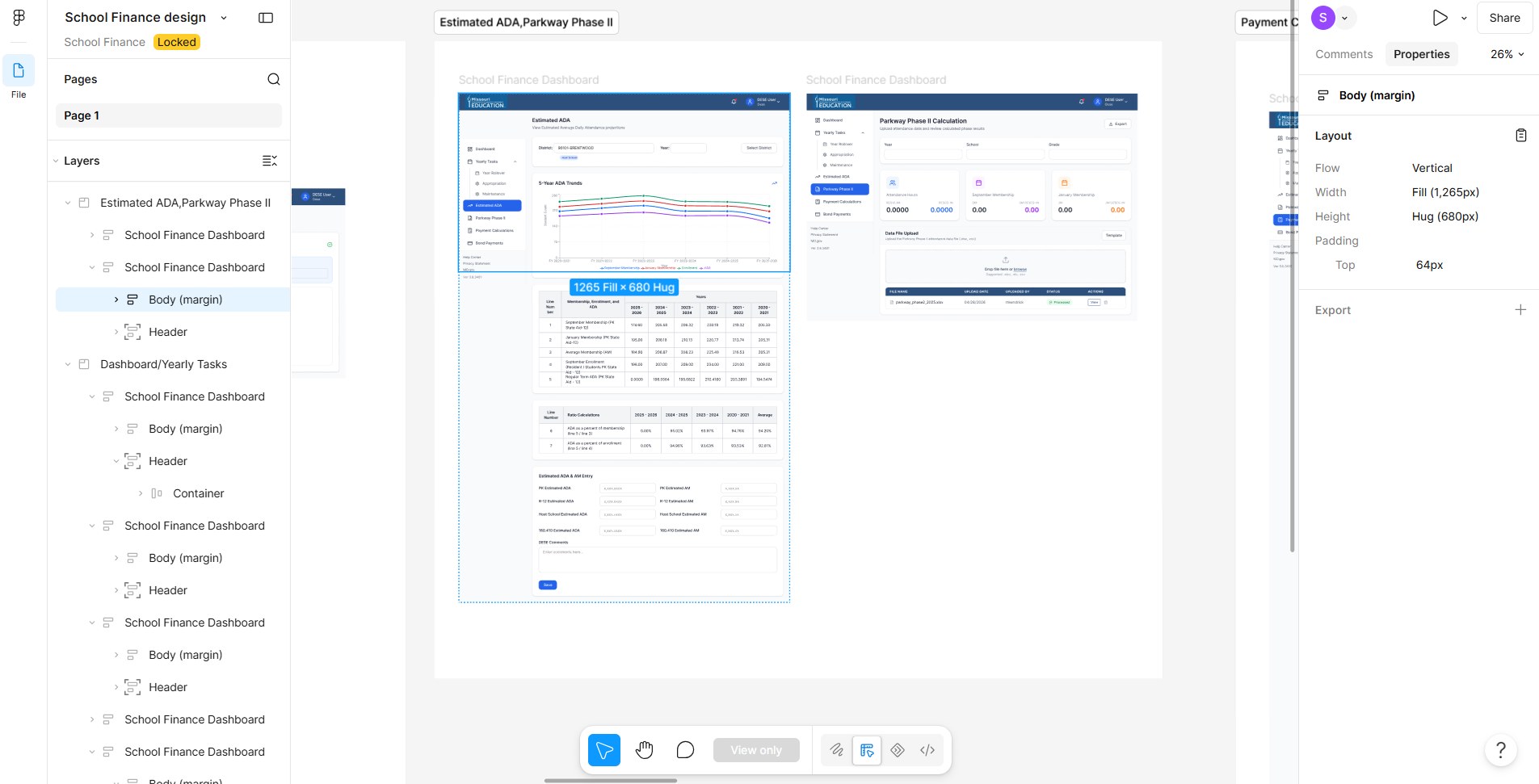
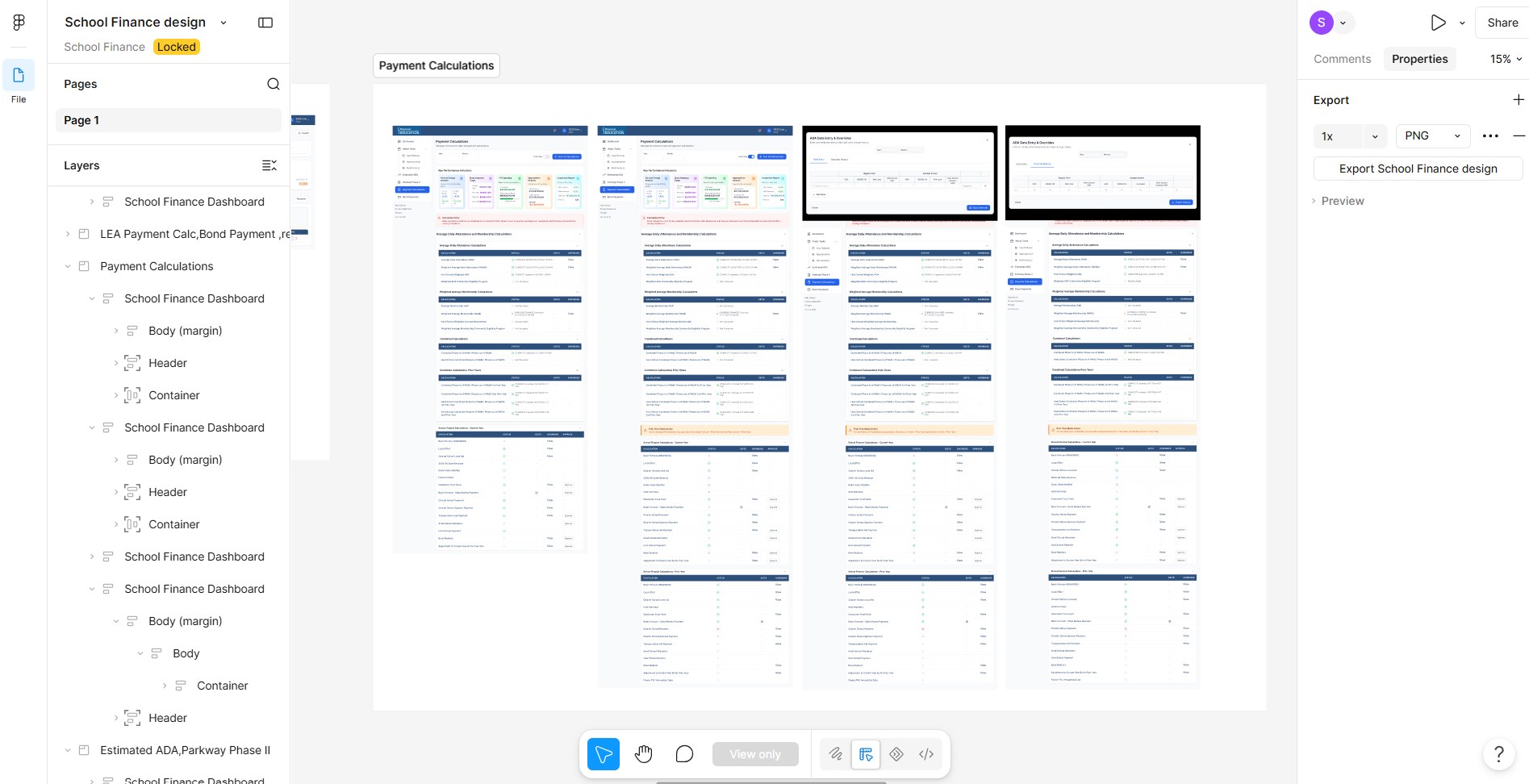
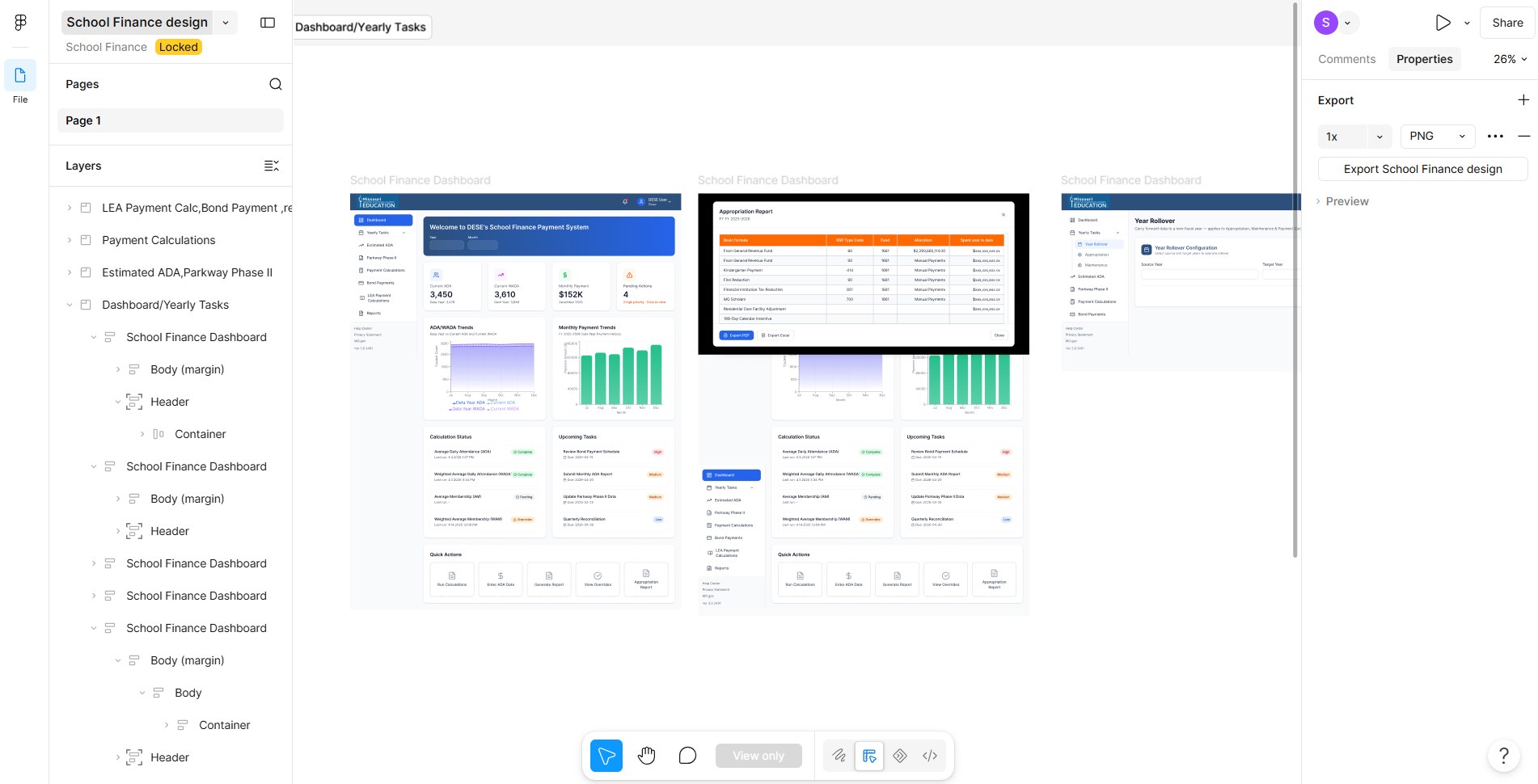
I set up the Figma file so it could grow without falling apart. Each workflow has its own section on the canvas. Every screen uses the same structure: a Header component and a Body (margin) frame in vertical auto layout that holds the page. Components like the sidebar and filter bar have a Role property, so one component covers DESE, district and public views.

Figma file showing the Dashboard and Yearly Tasks section with the layers panel listing School Finance Dashboard frames
Dashboard and Yearly Tasks. The dashboard, the Appropriation Report pop-up and Year Rollover, each built from a Header plus Body (margin).
Figma file with the Estimated ADA screen selected; the properties panel shows vertical auto layout, Fill width, Hug height and 64px top padding
Estimated ADA and Parkway Phase II. The Body (margin) frame uses vertical auto layout, Fill width and Hug height with 64px top padding, so every page keeps the same margins and grows with its content.
Figma file showing four Payment Calculations screens, including two data entry and override pop-ups
Payment Calculations. Four states of one long page, side by side, so developers can see exactly what changes in each.

The design system lives in the same file. Click a layer below to see how the components are set up.

Missouri DESE · School Finance / Components
100%
# Structure · before / after
Old portal · simplified sketch
Payment Calculations (links)
Appropriation + Maintenance (one table)
Reports (long list)
Estimated ADA (links)
Bond Payments (links)
…every page reached by links
→
New portal · DESE navigation
Dashboard
Yearly Tasks
└ Year Rollover
└ Appropriation
└ Maintenance
Estimated ADA
Parkway Phase II
Payment Calculations
Bond Payments
LEA Payment Calculations
└ Select district → calculation links
Reports
Payment Transmittal
└ Date or amount → detail
❖ Components
❖ Color tokens · from the design document
Navy
#2C4F7C
Royal blue
#2563EB
Navy hover
#1E3A5F
Background
#F9FAFB
Border
#E5E7EB
Text
#111827
Alert
#FEF9C3
Info
#EFF6FF
❖ Badge · Status
CompleteHighPending
❖ Button · Primary / Outline / Link
⇩ ExportHoverSelect DistrictLink button
❖ Filter bar · Role
role=DESEAny district ▾FY 2025–26 ▾
role=District96101-BRENTWOODFY 2025–26 ▾
role=PublicSelect a district ▾FY 2025–26 ▾
Interactive fileClick a layer or anything on the canvas to inspect it
Handoff

Handing it over

The high-fidelity prototypes went through several rounds of review with stakeholders on MS Teams calls, and I updated them after each one. At the end, I handed off the Figma file in Dev Mode and walked developers and stakeholders through it.

Alongside the file I wrote a design document, version 1.0, dated May 29, 2026, so everyone had one written reference for how the portal should look and behave.

What the design document covers
  1. Colors
  2. Typography
  3. Spacing and layout
  4. Core components
  5. Page flow for each role
  6. Key page designs
  7. Responsive behavior
  8. Accessibility
Looking back

What this project taught me

In six months the portal went from a maze of links to a structured, role-based system with its own design system, reviewed prototypes and a full handoff package.

Listen to the long-timers

The people who had kept this system running for 20 years explained in an hour what would have taken me weeks to figure out.

Build the system first

Having the design system ready early is what made a June finish possible.

AI saves time on building, not on thinking

The tools made me faster. The decisions still came from research and conversations with real people.